External Columbus - User Guide
Athene Broker Offers Application User Guide - Manually Entering Offers
- An email is sent from Athene, with the address AtomGenericInbox@athene.com, requesting offers. The subject will be "Athene Offer Requests".
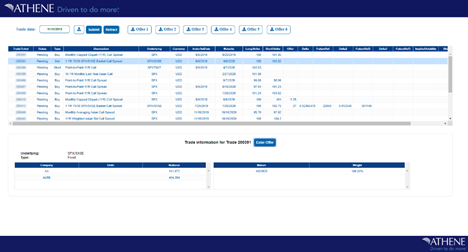
2. From the email, click the link to proceed to the Broker Offers web page. Clicking the link will automatically log you in to the landing page. This link is token based authentication and will expire at 8pm on the day it was issued. You will see the trades that have been requested in a status of 'Pending' on the screen.
Landing page:
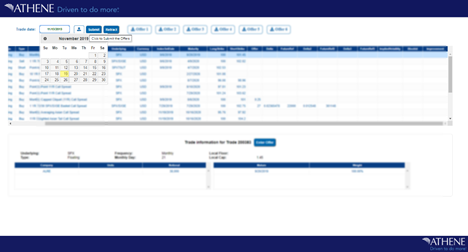
3. The Broker Offers page defaults to viewing offers for the current date. The page also allows for historic dates can be selected. To select a date for viewing, activate the date field and click on a date in the calendar window.
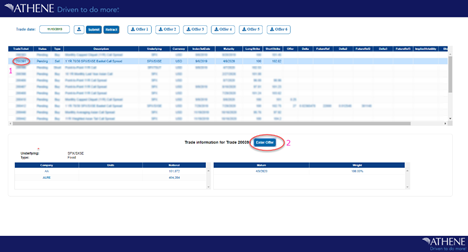
4. To enter pricing information for a trade, simply click on the trade you would like to offer and click on the button 'Enter Offer'.
5. Enter the offer data in the Enter Offer Information for Trade # window.
Floating: enter data in the Enter Offer field
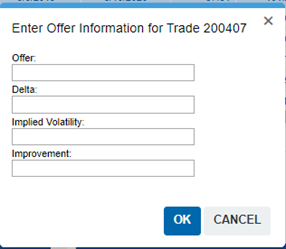
Fixed: enter data in the Enter Offer, Enter Delta, and Enter Future Reference fields.
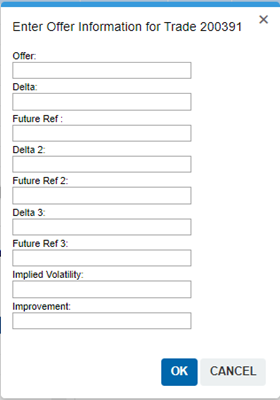
6. Click  to proceed or
'Cancel' to cancel the offer.
to proceed or
'Cancel' to cancel the offer.
7. After entering the prices, review data in the trades on the screen.
8. If a trade contains incorrect data, highlight
the trade and click  . Update the
previously enter the correct values and click .
. Update the
previously enter the correct values and click .
9. If an offer needs to be removed, highlight the
trade and click  . (This can
be done up to the point the offer is accepted.)
. (This can
be done up to the point the offer is accepted.)
10. To submit pending offers to Athene, click  .
.
11. A prompt window will appear for you to confirm that you wish to submit the offers or to cancel and continue to update prices.:
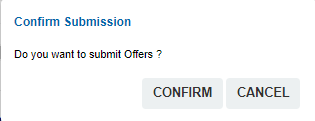
12. Click to proceed, or  to exit the
submission process.
to exit the
submission process.
13. All submitted offers will display a submitted status in the offer window:
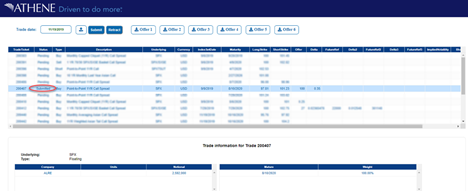
14. After submissions, contact is made by Athene via phone to discuss the offer(s).
15. Upon Offer submission , ATHENE will confirm the winning Broker. The status on those trades that have been won by the submitting broker, will show as 'TRADED LEVEL'; If its won by another broker , status will show as 'TRADED AWAY'

Athene Download and Upload Offers - User Guide
Downloading and Uploading Offers
- An email is sent from Athene, with the address ATOMGenericInbox@athene.com, requesting offers. The subject will be "Athene Offer Requests".
- From the email, click the link to proceed to the Broker Offers web page.
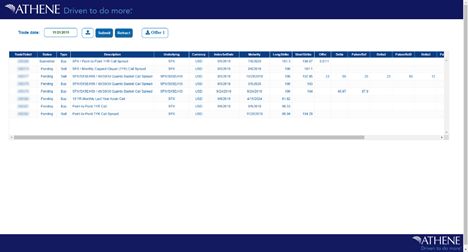
3. The Broker Offers page defaults to viewing offers for the current date, or historic dates can be selected. To select a date for viewing, activate the date field and click on a date in the calendar window.

4. Click  , to
download the trade offers xls workbook.
, to
download the trade offers xls workbook.
5. Click to save the file to a local drive.
6. Open the xls file.
7. Enter offer data in the xls file column. This can be done in one of two worksheets in the xls file:
Trades: enter broker offers with
one row for each trade ticket
Companies: enter broker offers
with one row per company, per ticket
Floating: enter BrokerOffer data
Fixed: enter BrokerOffer, Delta, and adjust the FutureRef data
***{}You do not have to complete all trade tickets to successfully upload trades.
Once data is on all associated trades, Save the xls.
8. In the Broker Offers page of
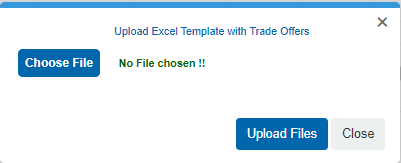
the website, click  and the Upload
Excel Template with Trade Offers window appears:
and the Upload
Excel Template with Trade Offers window appears:
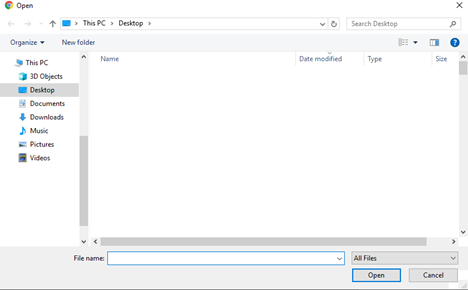
9. Select the xls file and then click  .
.
10. Review the upload results on the Upload Status page:

11. Make changes to the xls file if necessary and repeat the upload process.
12. Review the prices that were from the uploaded trades spreadsheet.
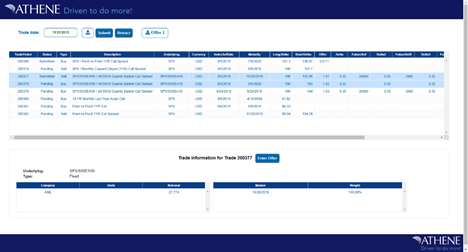
a. If a trade contains incorrect data, highlight
the trade and click . Enter the
correct values and click .
b. If an offer needs to be removed, highlight the
trade and click . (This can be done up
to the point the offer is accepted.)
13. To submit pending offers to Athene
click .
14. A prompt window will appear:
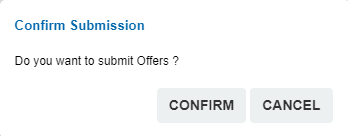
15. Click  to proceed, or to exit the
submission process.
to proceed, or to exit the
submission process.
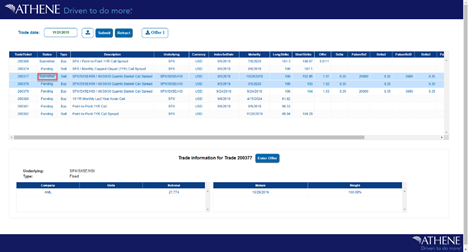
16. All submitted offers will display a Submitted status in the offer window:
17. After prices have been submitted, contact is made by Athene via phone to discuss the offer(s).
18. When the offer is submitted and accepted, the ability to retract or edit is no longer allowed.